Skiaform / Guides
Architecture portfolio cover page: examples and layouts
Build an architecture portfolio cover page with image and type layouts, readable contact details and a cover that matches the work inside your PDF.
Your architecture portfolio cover page should say who you are, identify the document and show one piece of your work. For an internship or first job, that opening image or drawing gives the reader a sense of your design before page 2. Start with your strongest project and your name, then arrange the supporting details around them.
What to put on an architecture portfolio cover page
Make your name the largest text. Add a small document label such as "Architecture portfolio," your school and degree or current role, your email and your portfolio website. Group the details in one block so a reader finds them in one place. Keep a dated or firm-specific line only when the application asks for it.
You can include one image or drawing from your strongest project. Give it a small caption with the project name and drawing type, such as "Casa Sombra, elevation." Keep the description of the design for the project pages, where you have room to explain it alongside supporting work.
Leave off a table of contents, quotes, a logo made just for the cover and unrelated stock imagery. Avoid making "Portfolio" the giant headline: your name should hold that position.
Two cover layouts that work
Both layouts in these figures use Alex Rivera, a fictional student, and Casa Sombra, a fictional sample project. Replace the sample identity and project with your own. The arrangements share a grid, so you can compare how much space each gives to the name and drawing.
Image cover
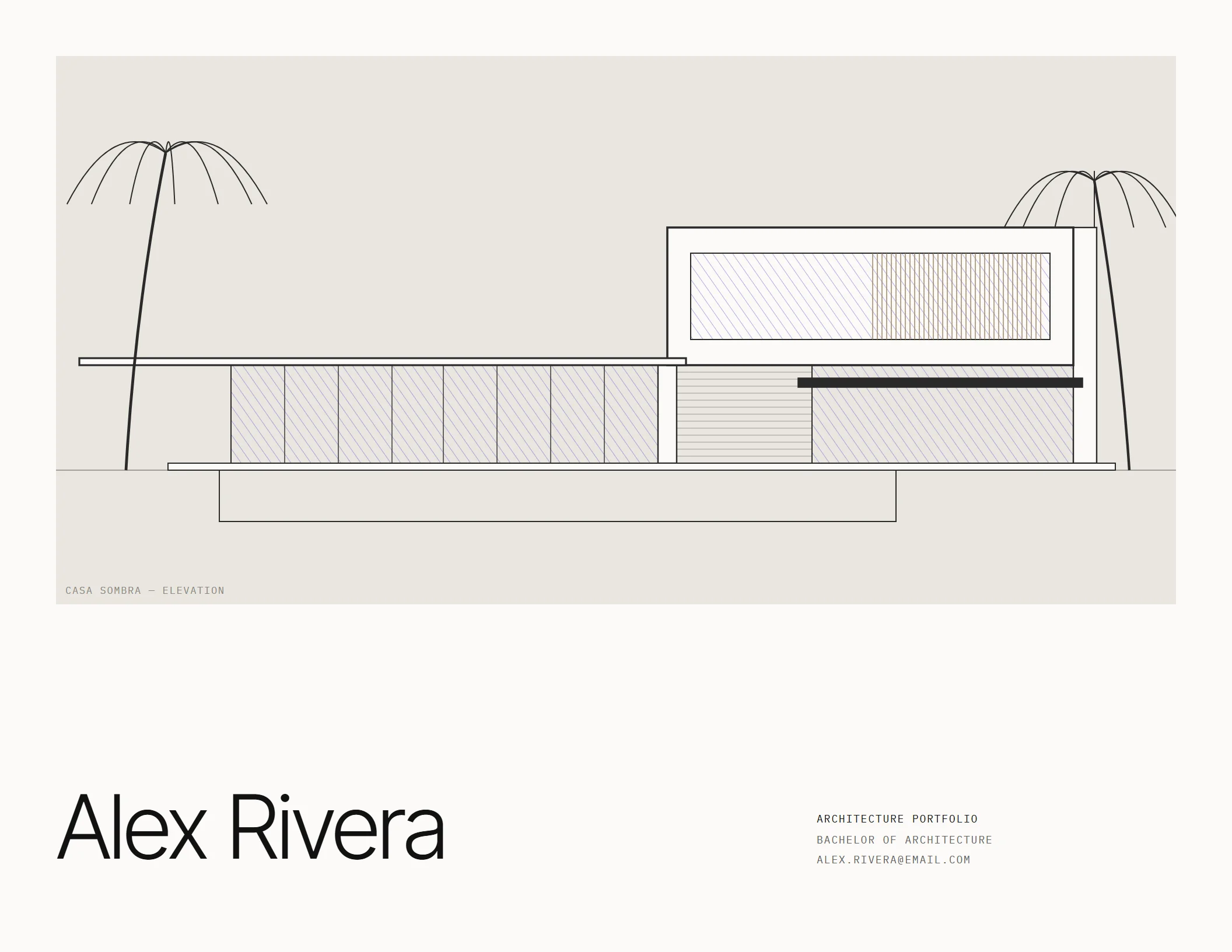
Use this arrangement when you have one strong image or drawing. The image spans all 12 columns within the margins. In the US Letter landscape template, its frame is 470 px high on an 816 px page at 96 px per inch. That gives the elevation enough space to show the long roof and screened upper volume.
Below it, your name occupies eight columns. A four-column block on the right holds small details, including the document label, degree and email. Keep those alignments when replacing the drawing with a render; check that the crop preserves the part of the design you want to introduce.
Type cover
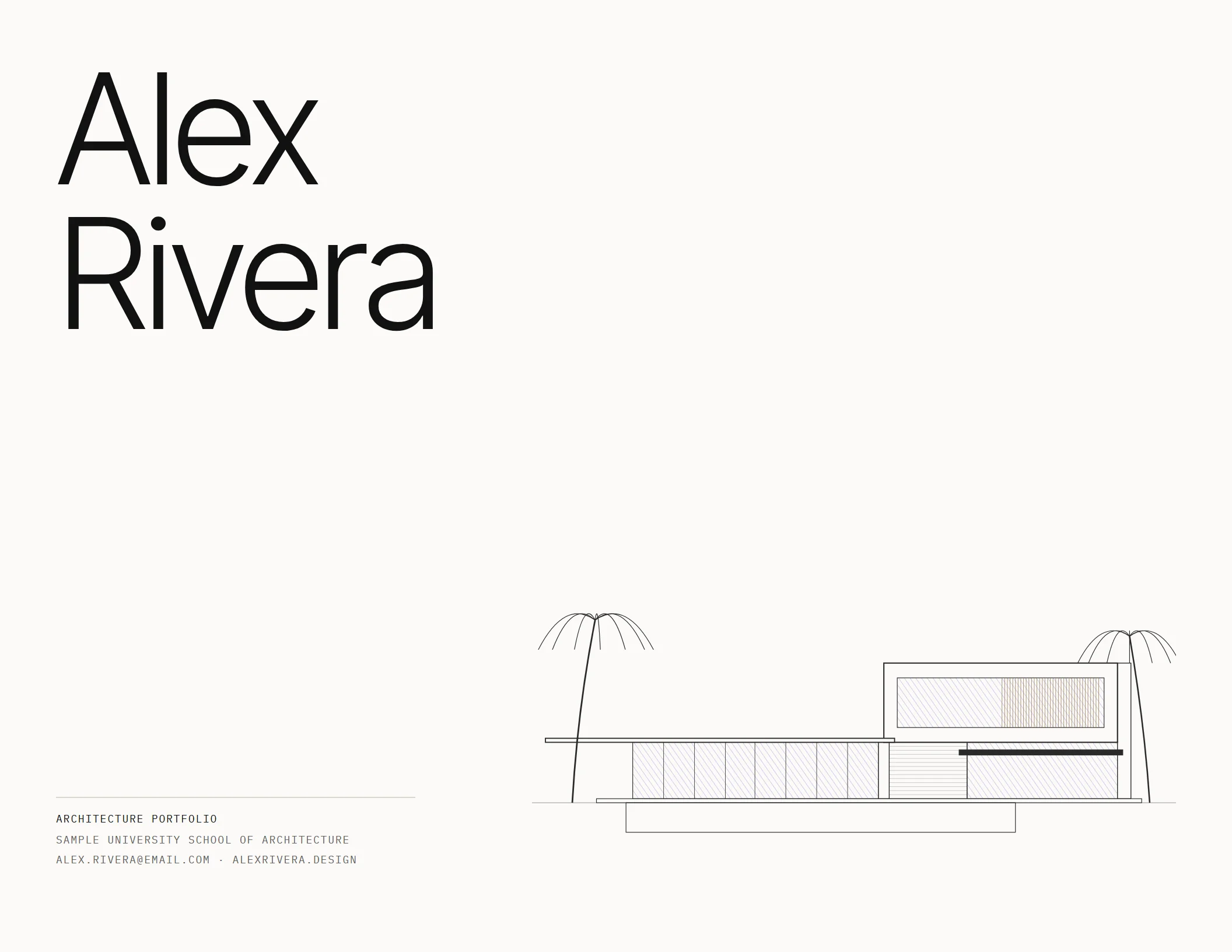
Use this arrangement when your strongest work is drawings, or when no single image represents everything. Your name sits large across a ten-column frame at the top. A smaller drawing occupies seven columns low on the page, with the details grouped at bottom-left.
The empty area between the name and the elevation keeps the two apart, so leave it empty when you add your own details. A long school name can wrap to a second line in the details block.
Choose the image from your strongest project
Choose the same image or drawing that opens that project later in the portfolio. The reader then recognizes the project when it comes up. An elevation, axonometric or section is as valid as a render when it makes the design legible.
Check the cover as a thumbnail in an email attachment or file browser. You should still be able to recognize the main shape and find your name. If the image becomes an indistinct patch, try a clearer view or simplify the crop without losing the design's context.
Keep the caption close to the image. Name the project and drawing type accurately, then check that the wording agrees with the project pages.
Type on your architecture portfolio cover
Compare the architecture portfolio covers below using the labels Grotesk, Serif with sans and Wide caps. Keep your name largest in every direction. Use one typeface family as your starting point, with a mono or small text style for details; the serif direction pairs serif display text with sans text.
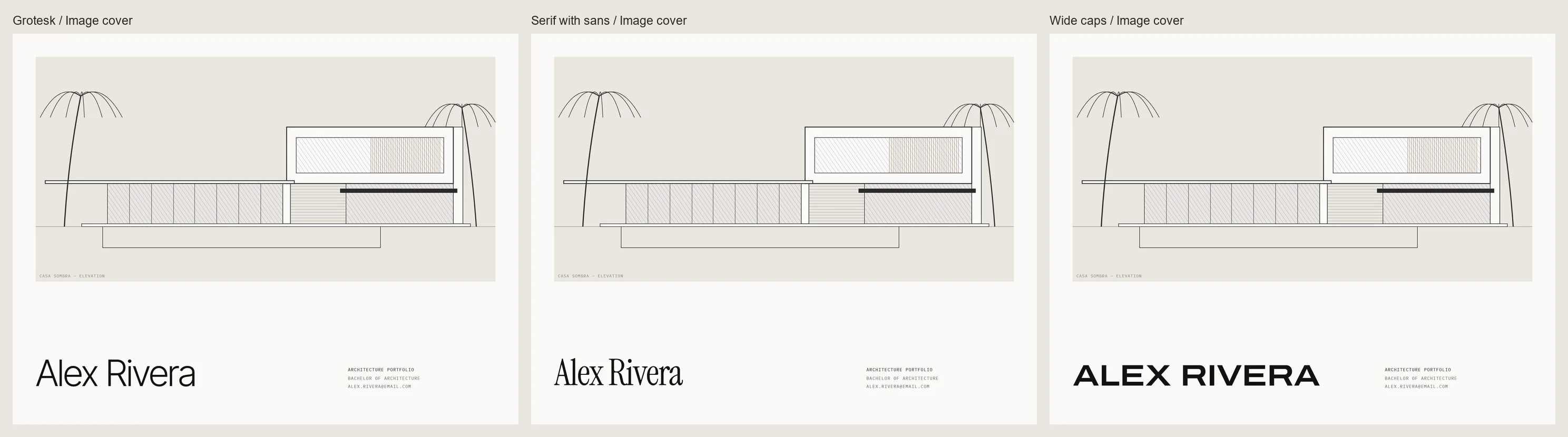
Grotesk keeps the letterforms simple across the page. Serif with sans changes the character of the name while keeping the supporting information quiet. Wide caps uses expanded uppercase letters, which occupy more width. The template uses smaller display sizes for its wide-caps covers so longer names fit.
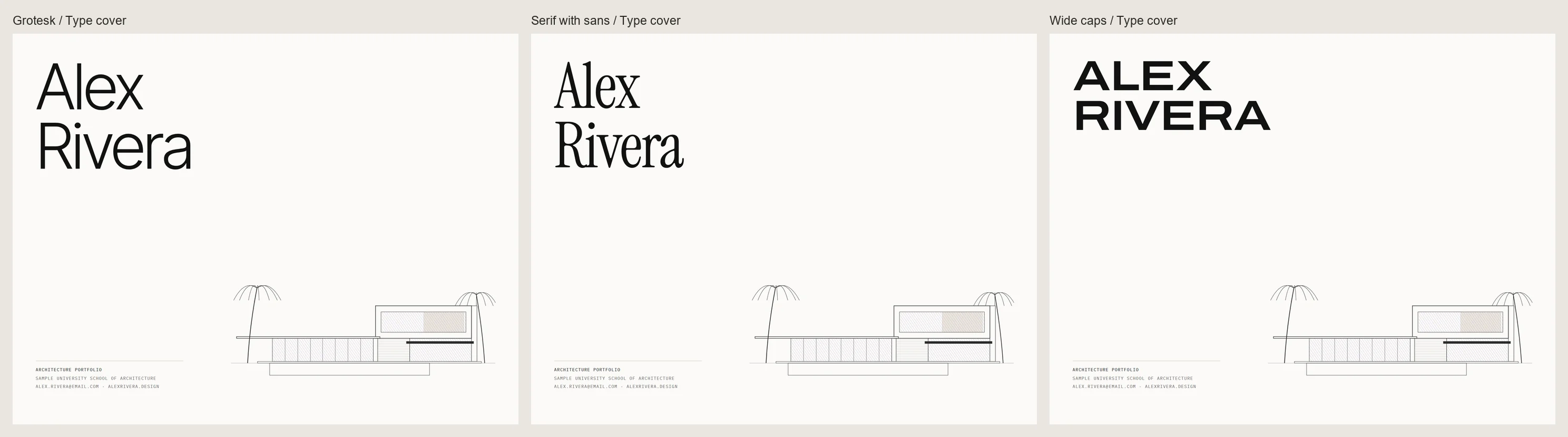
Test your full name before choosing a direction. Keep contact details at body size or slightly smaller, and inspect them at actual page size. If a line will not fit, adjust its break or spacing before making the text microscopic.
Choose a light or dark cover
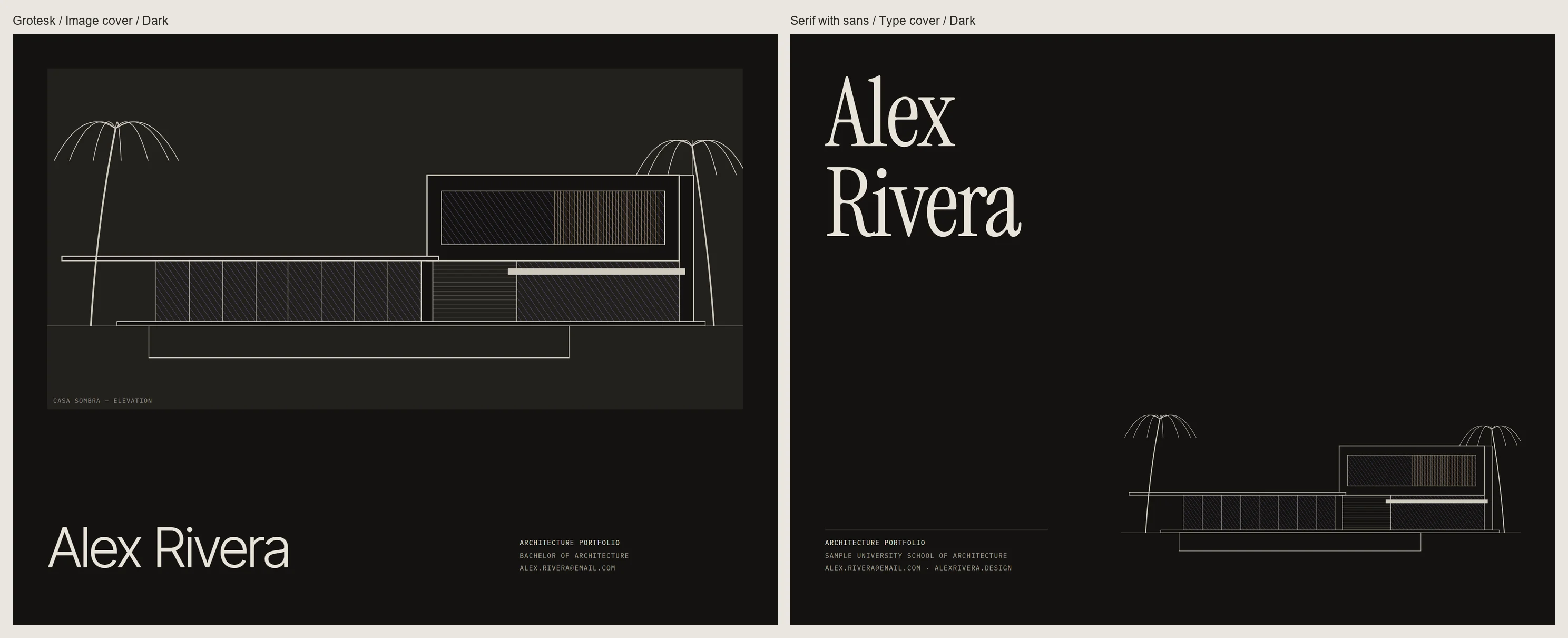
A dark cover reads well on screen and in a PDF when the drawing and small text remain clear against the background. Check pale linework and captions in the exported file. For the dark edition, prepare drawings with light linework on a dark or transparent background so a white drawing sheet does not interrupt the page.
For printing, use the light version. Large solid dark areas need a print shop because of their ink coverage; they band on home printers. Keep the cover in the same edition as the inner pages.
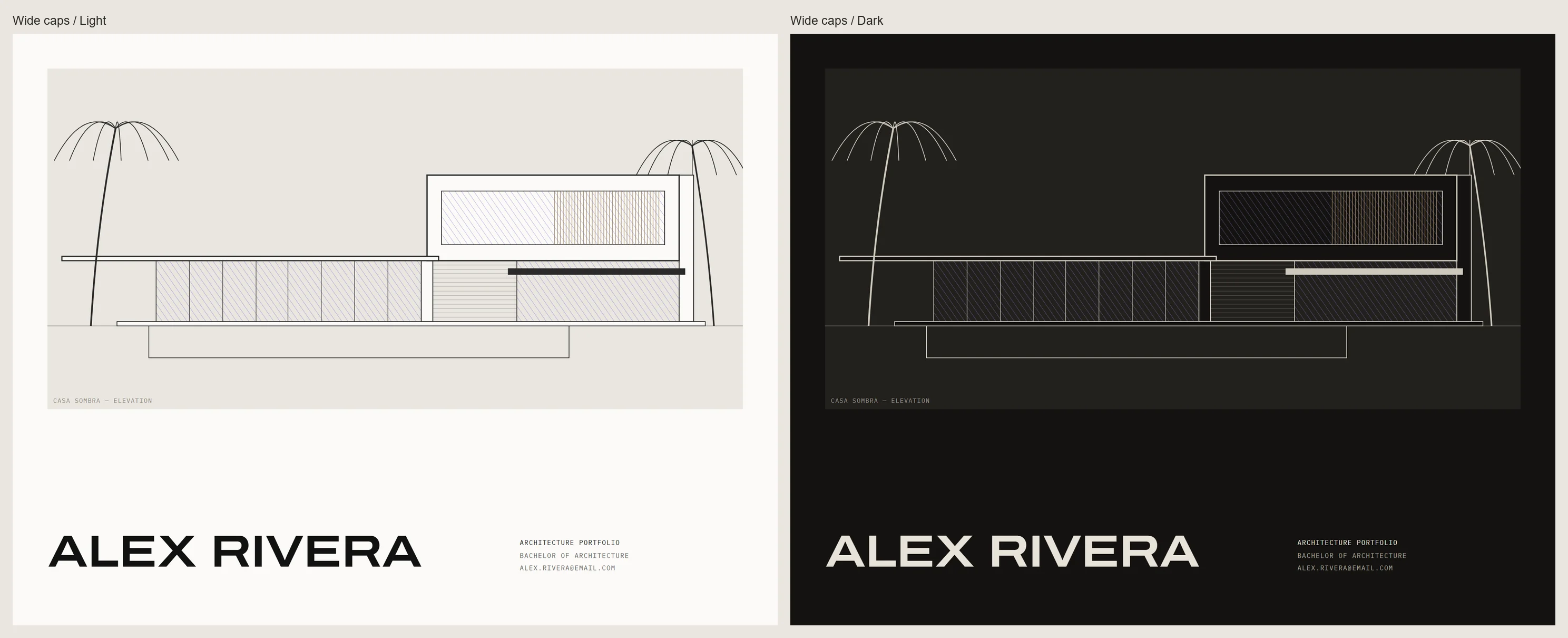
The Wide caps sample keeps the same arrangement in both editions, so only the background and linework change. Compare your own project pages the same way before you pick an edition.
Make the cover match the rest
Use the same grid, margins and type styles as your inner pages. The architecture portfolio layout guide explains the 12-column grid and page sequence. Carry its alignments onto the cover so the opening feels connected to the first project.
Your contact page can repeat the cover details at the end. Update both when you change an email or website. The annotated architecture portfolio examples show the full sample sequence, including how the cover and contact page frame the projects.
Cover a work sample and a full portfolio
A 3 to 5 page work sample still gets a cover. You can use the same cover design for your 10 to 14 page core portfolio, with fewer pages behind it in the short version. You do not need a separate title page after the cover.
The template's five-page work sample runs: cover, project one on one page, project two on one page, project three on one page, contact. With two projects, it becomes four pages. Keep each project on its single page; use the core portfolio for separate openers and body pages, following the layout guide's sequence.
Checklist before you export
Export the PDF, then open the file you will send. Links and images can break during export, so check these details in that file.
- Spell your name exactly as it appears on your resume.
- Click the email and website links in the PDF.
- Confirm the image caption's project name and drawing type.
- Check that the cover reads at thumbnail size.
- Keep the email PDF under 10 MB, following any application-specific limit.
- Include your name in the filename.
The Skiaform Portfolio architecture portfolio template for InDesign includes both cover layouts in three type sets, light and dark, in US Letter and A4 landscape. You can also use the free portfolio checklist while assembling your pages.
FAQ
Should my architecture portfolio cover have a picture?
Use an image or drawing when it introduces work you can explain inside. You can give it most of the page in the image layout, or keep it small in the type layout. Choose an elevation or section if that describes your work more clearly than a render.
Should I put my photo on the cover?
Leave your portrait off this cover and give the space to your work. Your name and contact details identify you, while the project image introduces your design. Follow any explicit application requirement for a photograph.
What size should the cover be?
Use the same page size as the inner pages: US Letter or A4 landscape for this system. Keep that size throughout the PDF, including the contact page. Check the application requirements before setting up the document.
Should the cover say "portfolio"?
Use "Architecture portfolio" or a similar small document label to identify the file. Keep your name as the largest text. The label belongs with your supporting details.
Can I use a render made with AI on the cover?
AI may draw, style and render geometry you modeled; it never adds to or changes your design. Compare the output with your model and drawings before including it. Keep the caption accurate about the work you made.
Get the free portfolio checklist
A two-page checklist of the portfolio basics, from choosing projects to sending the PDF. It downloads as soon as you sign up. No spam.