What belongs in a title block
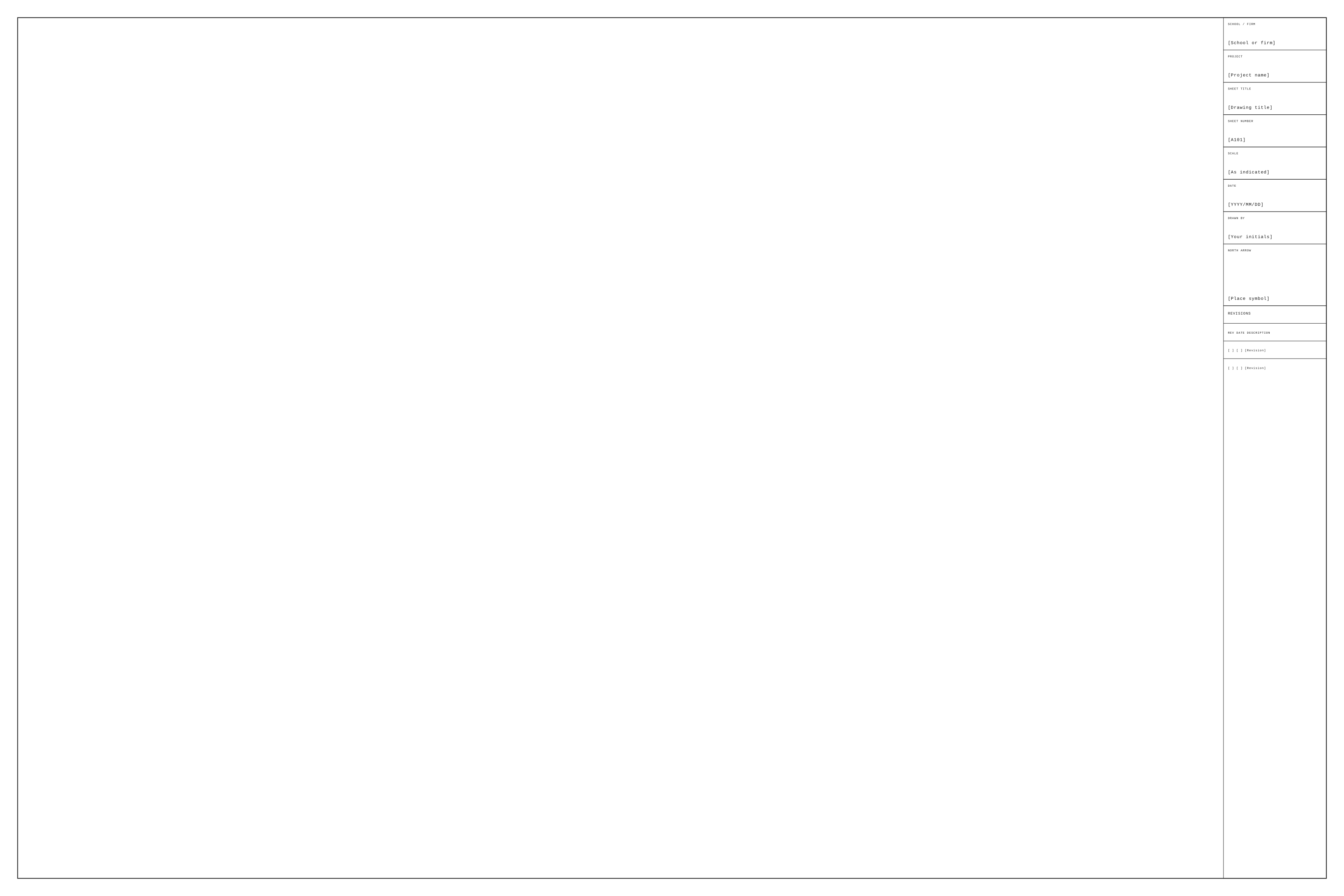
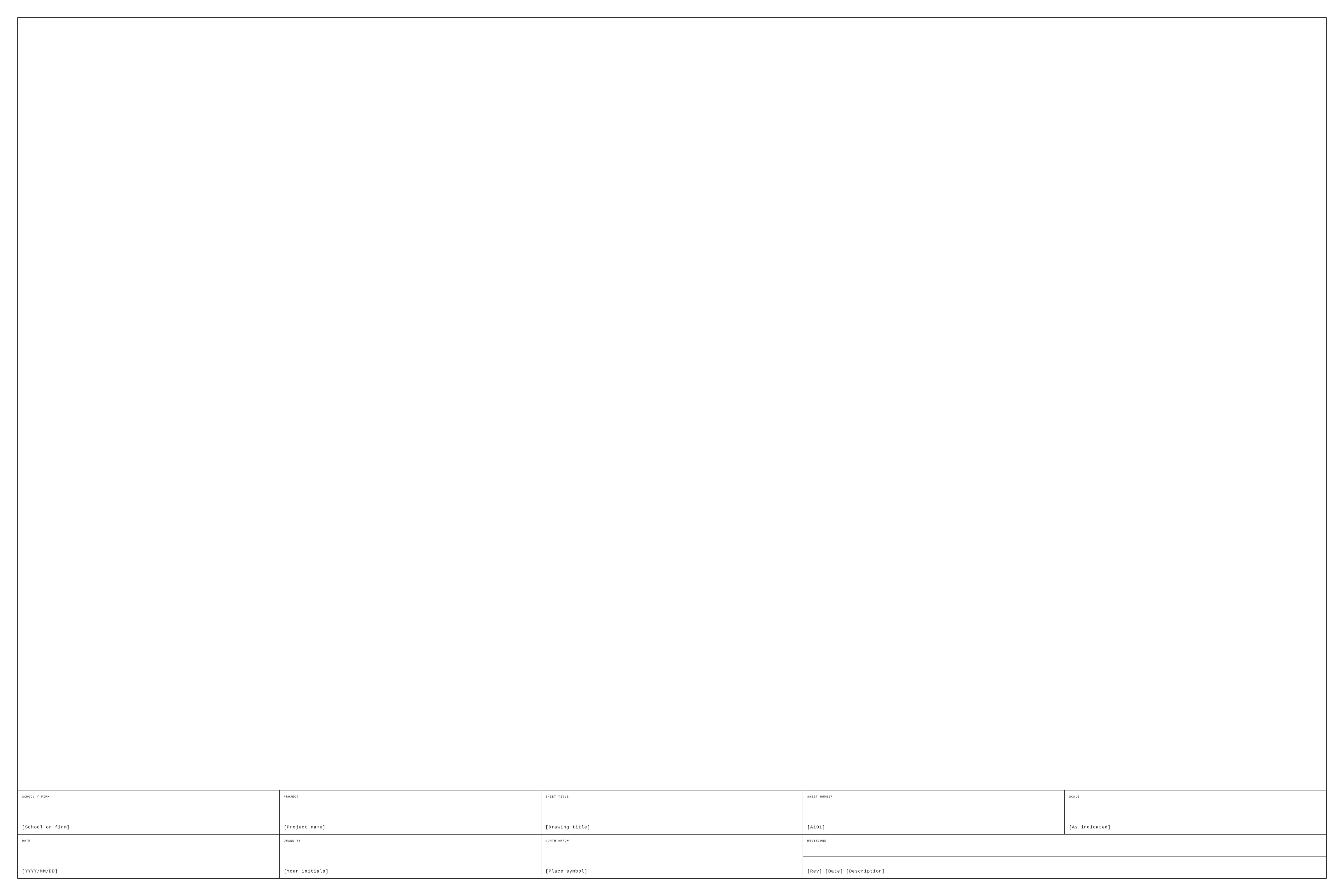
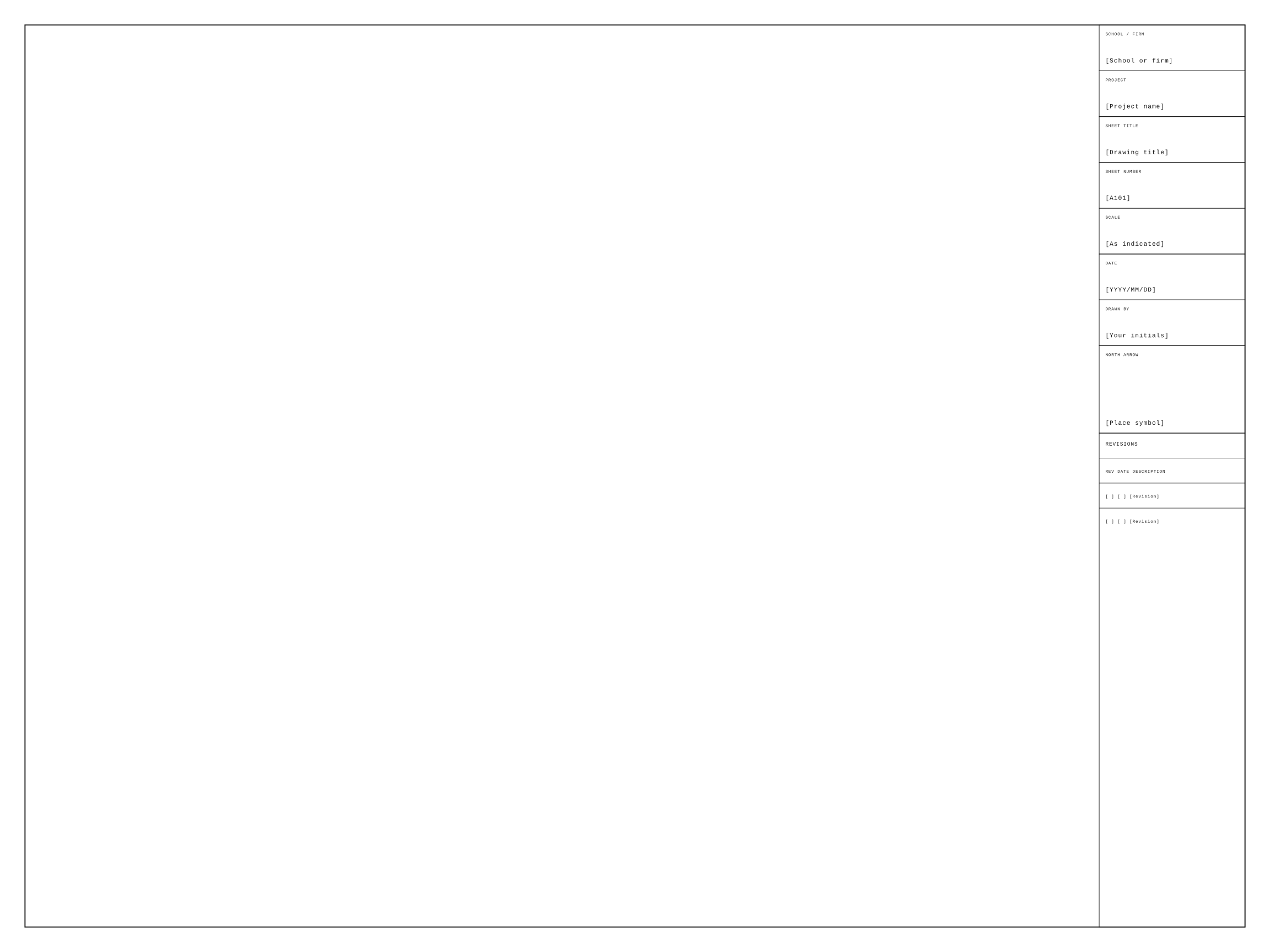
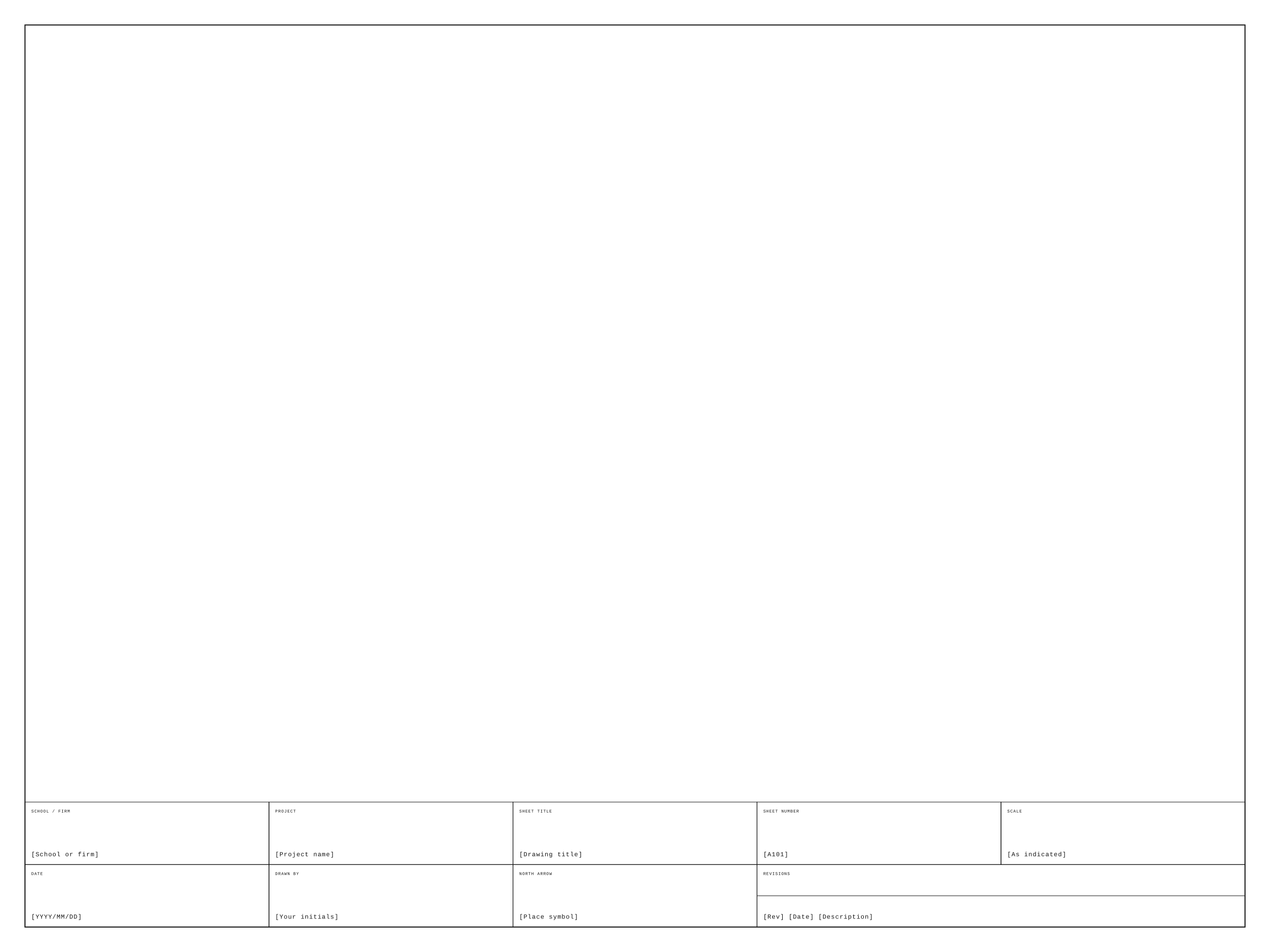
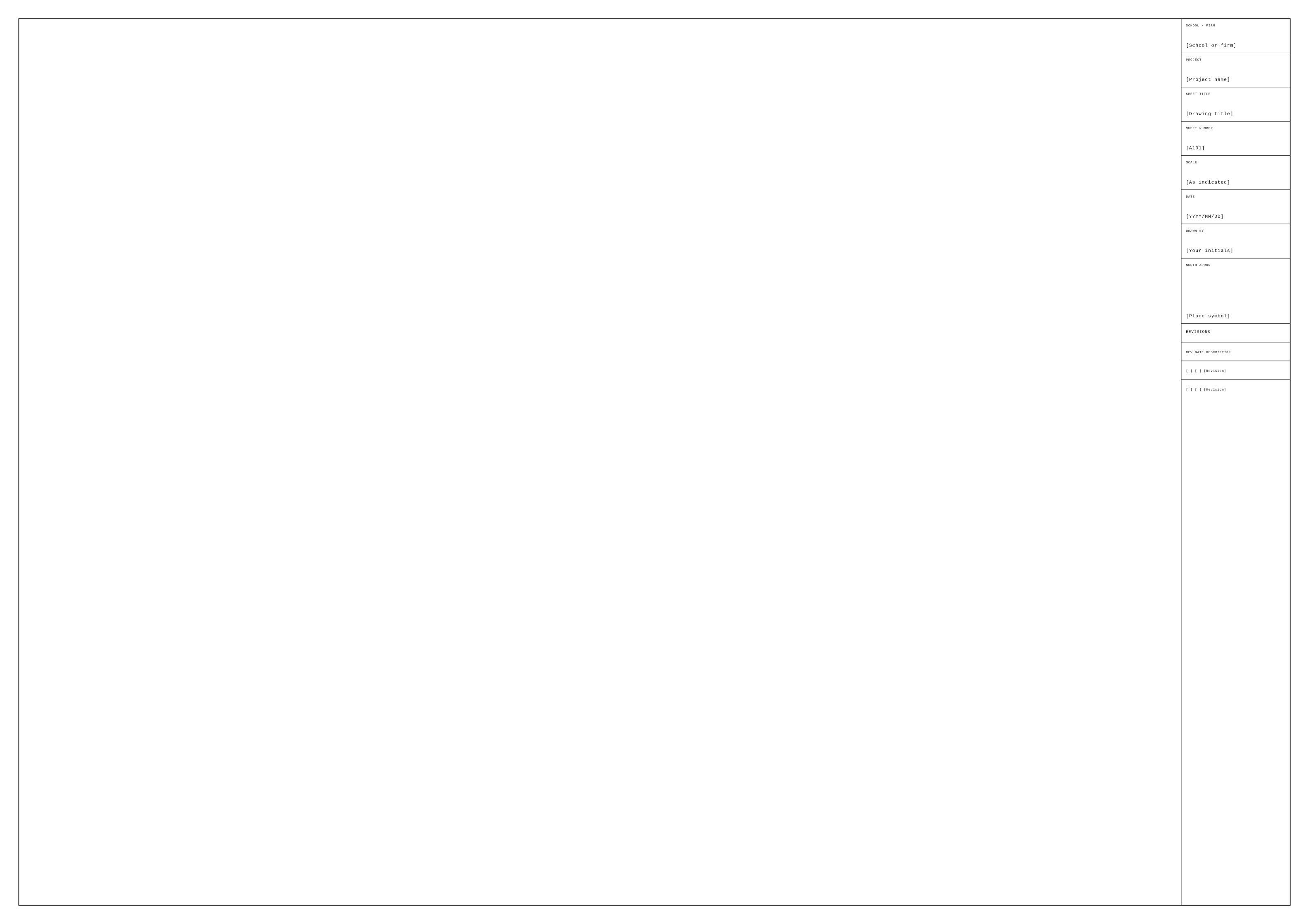
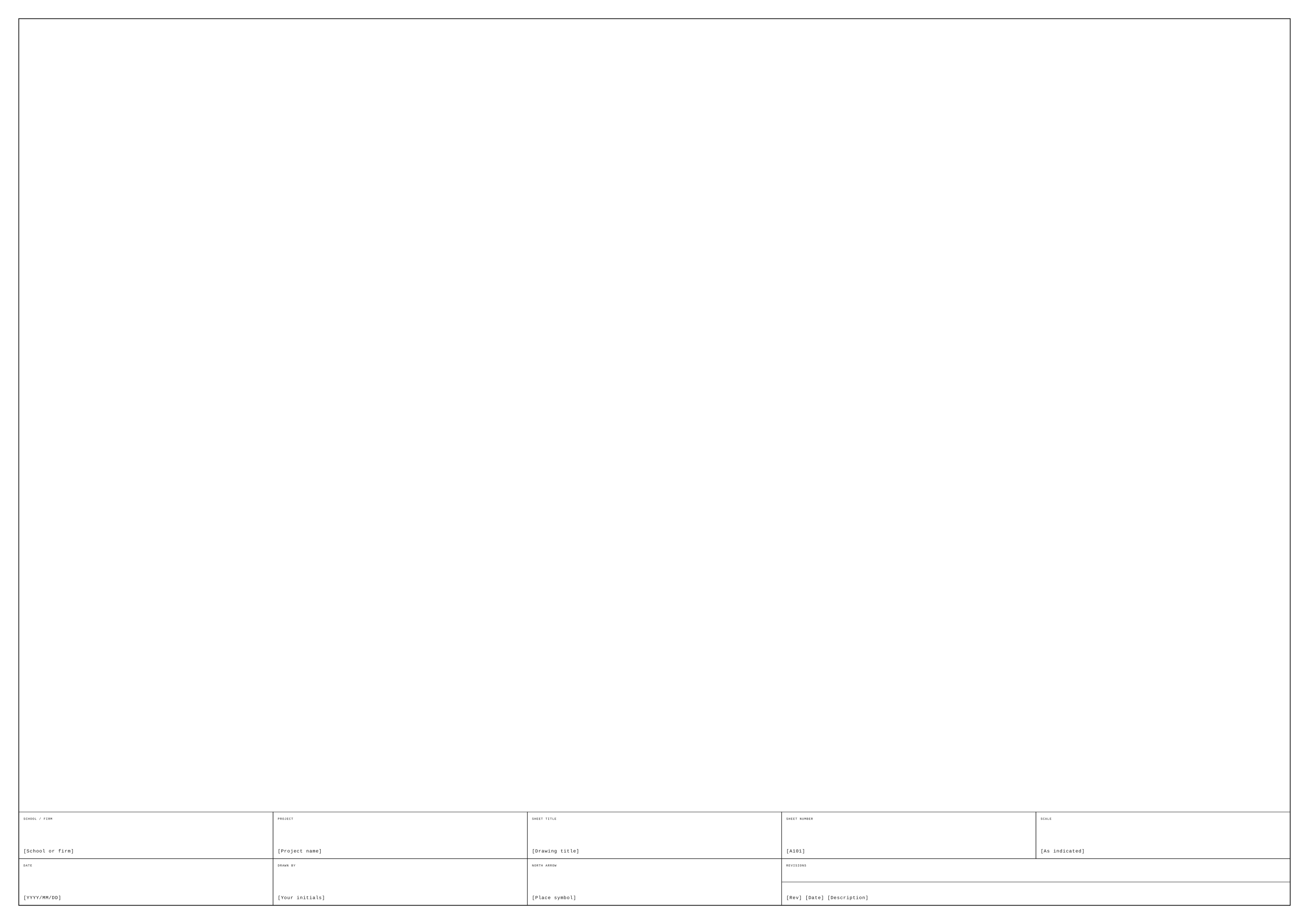
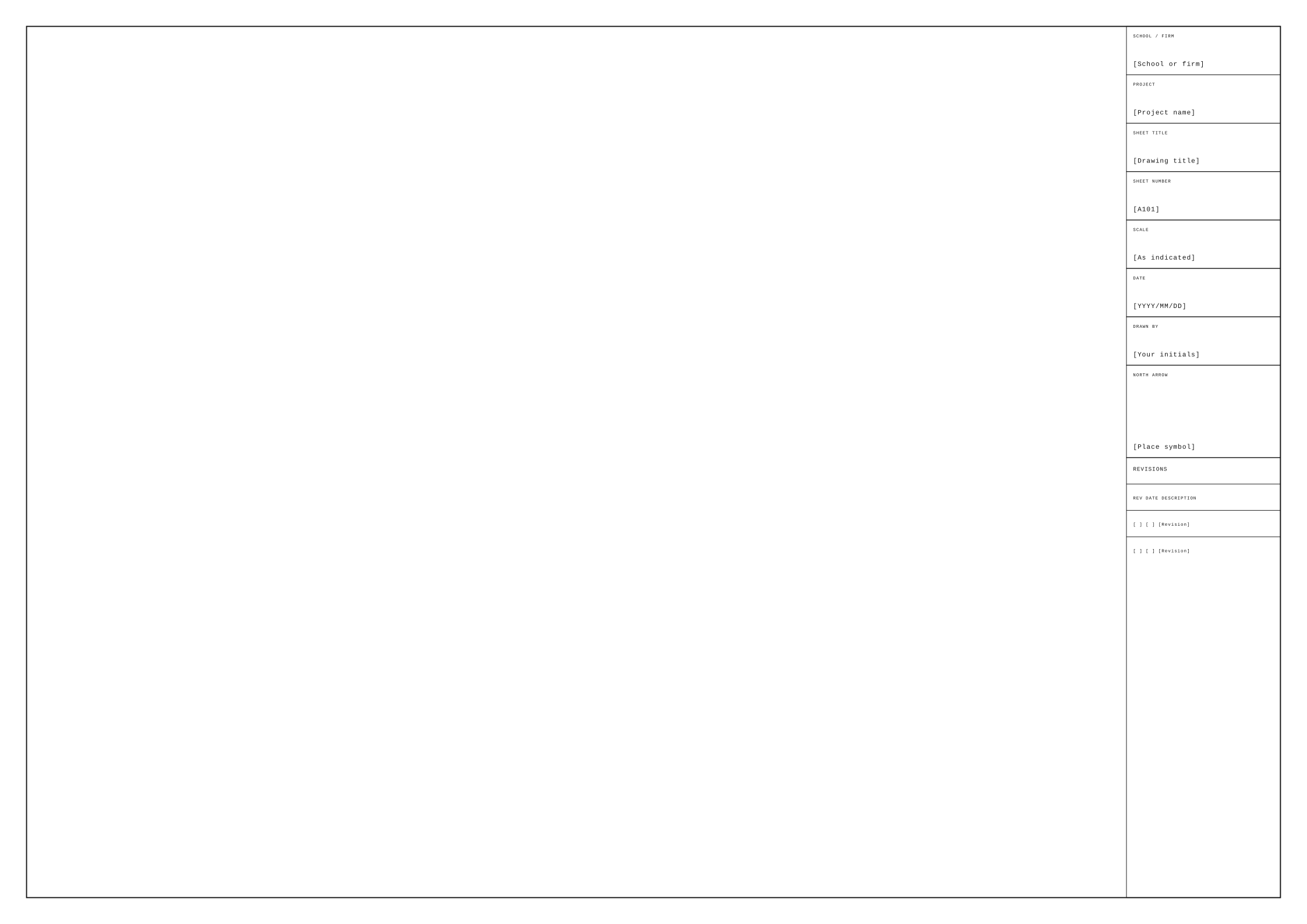
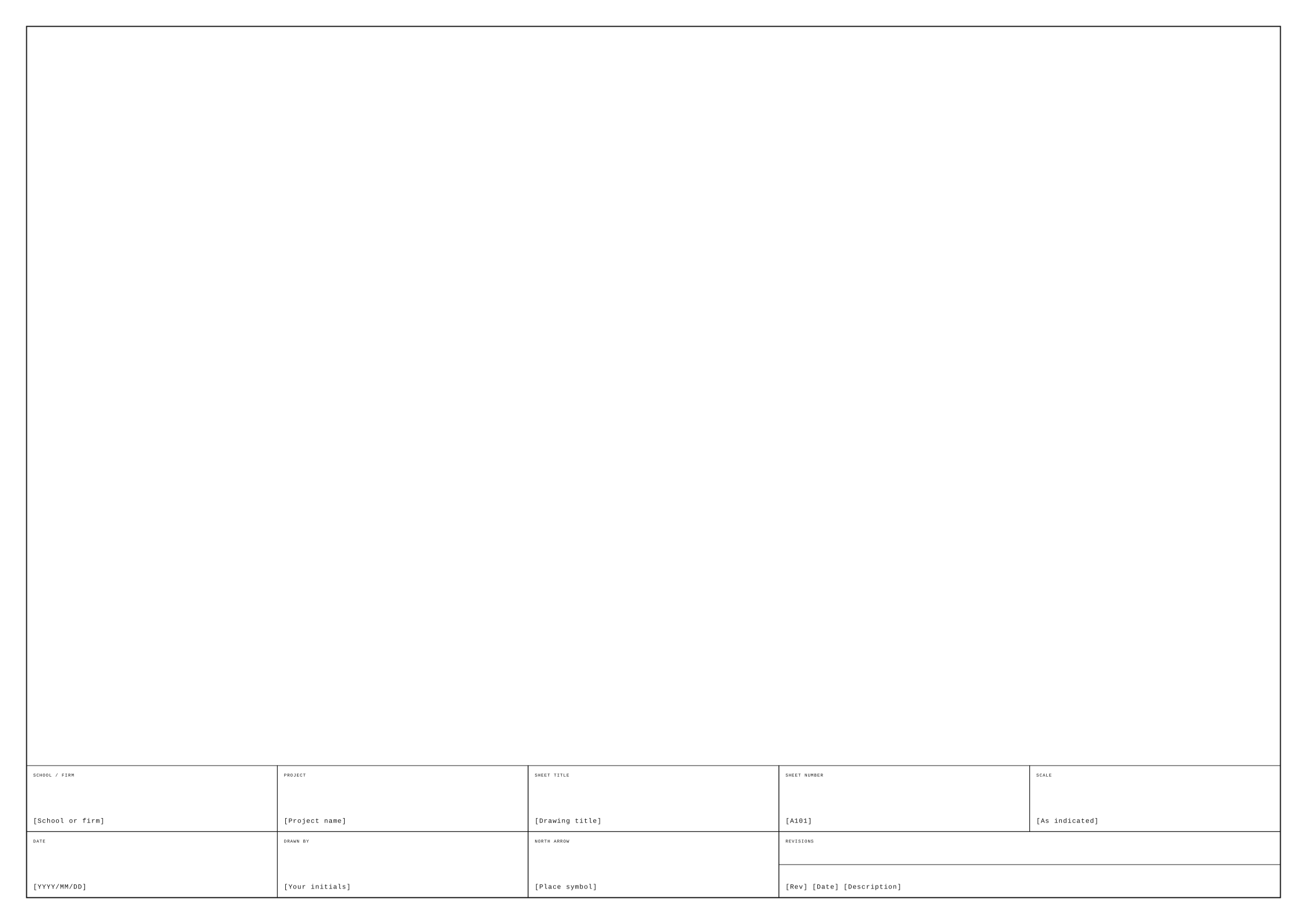
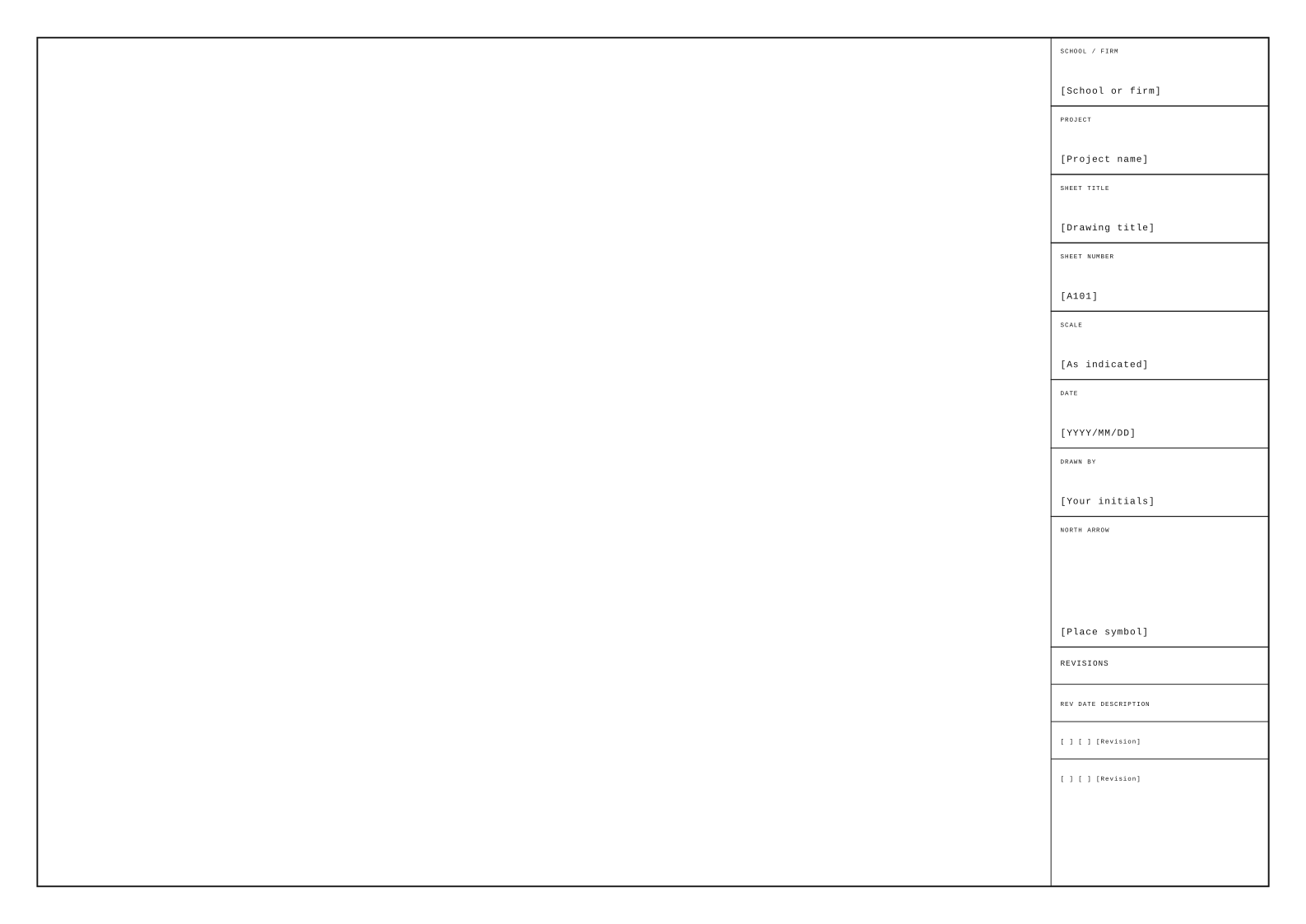
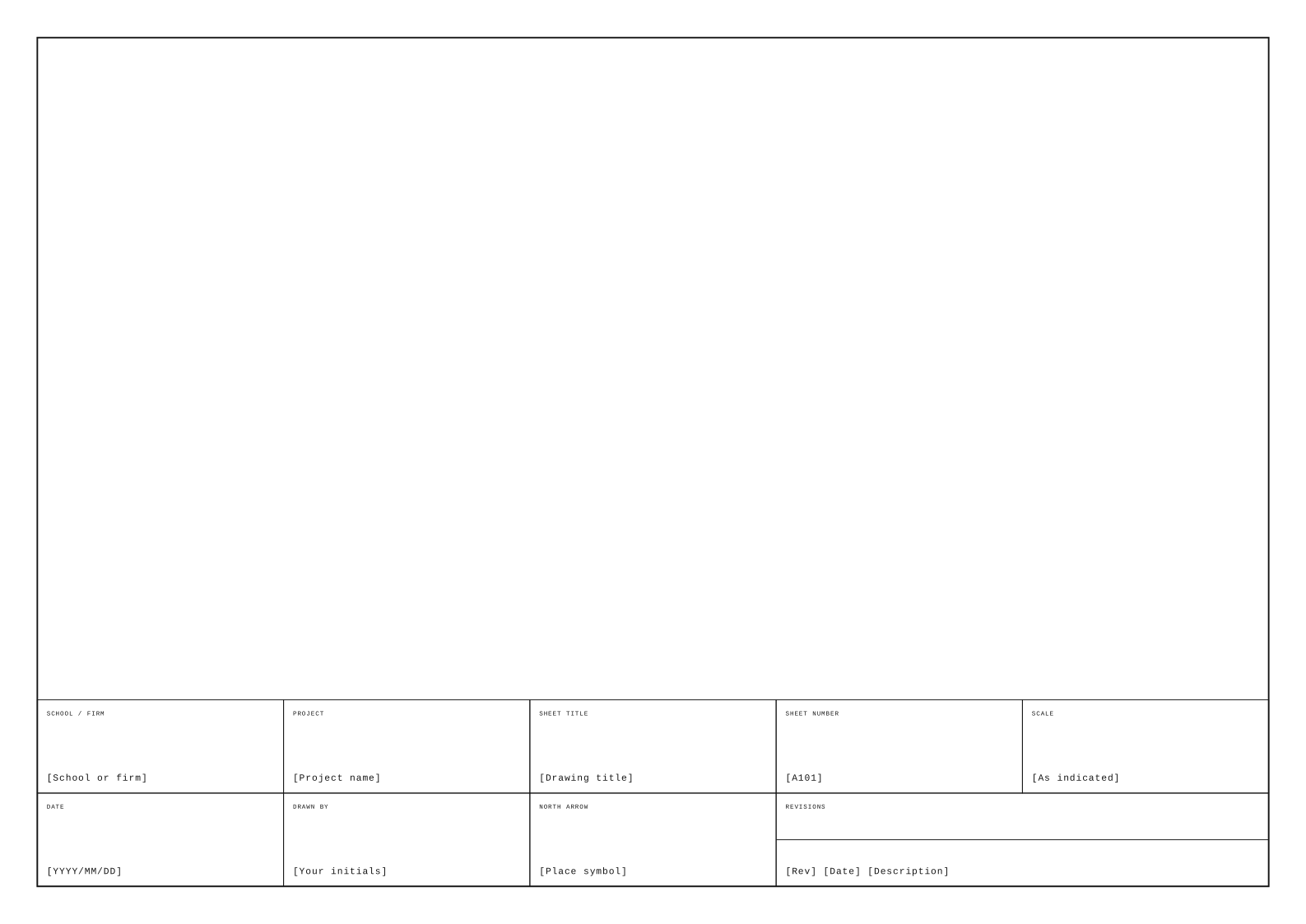
Your title block identifies the project and the drawing on the sheet. Fill in the project name, sheet title and sheet number first. Use a title that describes the actual view or group of views. A reader should be able to tell the difference between a ground floor plan, a section sheet and a set of construction details from the title.
Add the drawing scale, date and your initials in the smaller fields. The school or firm field can hold your course, studio or organisation name. Keep the wording consistent across the set. These templates contain plain text placeholders so you can replace them in a vector editor or CAD application without a form filling step.
Choose a sheet and layout
ARCH D is twenty four by thirty six inches, and ARCH C is eighteen by twenty four inches. The A series options use their stated metric sheet dimensions. All downloads place the longer edge horizontally. Choose your sheet before arranging the drawings so the margins and title block remain at their intended physical sizes.
The right strip reserves a vertical column for project information. You can align plan titles and notes beside it while keeping the lower edge of the drawing area open. The bottom strip spreads the fields across the sheet width and leaves a broad area above for plans or elevations. Use the same layout throughout a related set where possible.
Scale, orientation and revisions
Use the scale field for one ratio when the whole sheet shares that scale. If the sheet contains several scales, replace the placeholder with As indicated and label each view separately. Put a graphic scale beside the corresponding view when you expect the sheet to be resized. Keep that bar grouped with its drawing in the page layout.
The north arrow box is a reserved area for a symbol. Place an arrow there only when its direction clearly applies to the plan on the sheet. If views have different orientations, put a separate arrow beside each relevant plan. You can leave the box empty or repurpose it when the sheet contains sections or details that do not need a north direction.
Use the revision table to record a revision identifier, date and short description when you issue an updated sheet. Keep earlier entries readable so you can follow what changed. These are student sheet templates with blank project information. Check your own course brief for any required field names, sheet numbers or submission details before replacing the placeholders.
Place and print the template
Open the SVG in a vector editor to change labels and line work. Import DXF using one unit per millimetre, then assign fonts and line weights in CAD. Place the PDF at actual size for a fixed background sheet. Print a test area and measure it before sending the complete set.
The downloads use spaced mono labels and a heavier outer border to organise the sheet. Skiaform templates use the same drafting style. An IDML version is not included because these sheets have not been validated with the existing portfolio IDML builder. You can place the SVG into InDesign at its physical size.
FAQ
Are these title blocks free to download?
Yes, the files are available directly from this page. You do not need to enter an email address to download them.
Can I type into the PDF fields?
The PDF contains plain text placeholders rather than interactive form fields. Edit the SVG or DXF when you want to change the text.
Which units should I use for the DXF?
Import the file with one drawing unit equal to one millimetre. Measure the outer sheet dimensions after import to check that the size is correct.
Can one title block show several drawing scales?
You can use As indicated in the scale field. Label each view with its own scale and place its graphic bar beside that view.
Can I use these sheets in InDesign?
You can place the SVG or PDF at its physical size. There is no IDML download for these title blocks.
Keep up with Skiaform
Occasional notes about drawing tools and templates.