Skiaform / Guides / Photo to watercolor
Photo to watercolor
Get a downloadable watercolor from your photo. Most paintings are ready in 30 to 60 seconds.
2K for 1 credit, 4K print file for 2. Packs from $9.
Convert a photo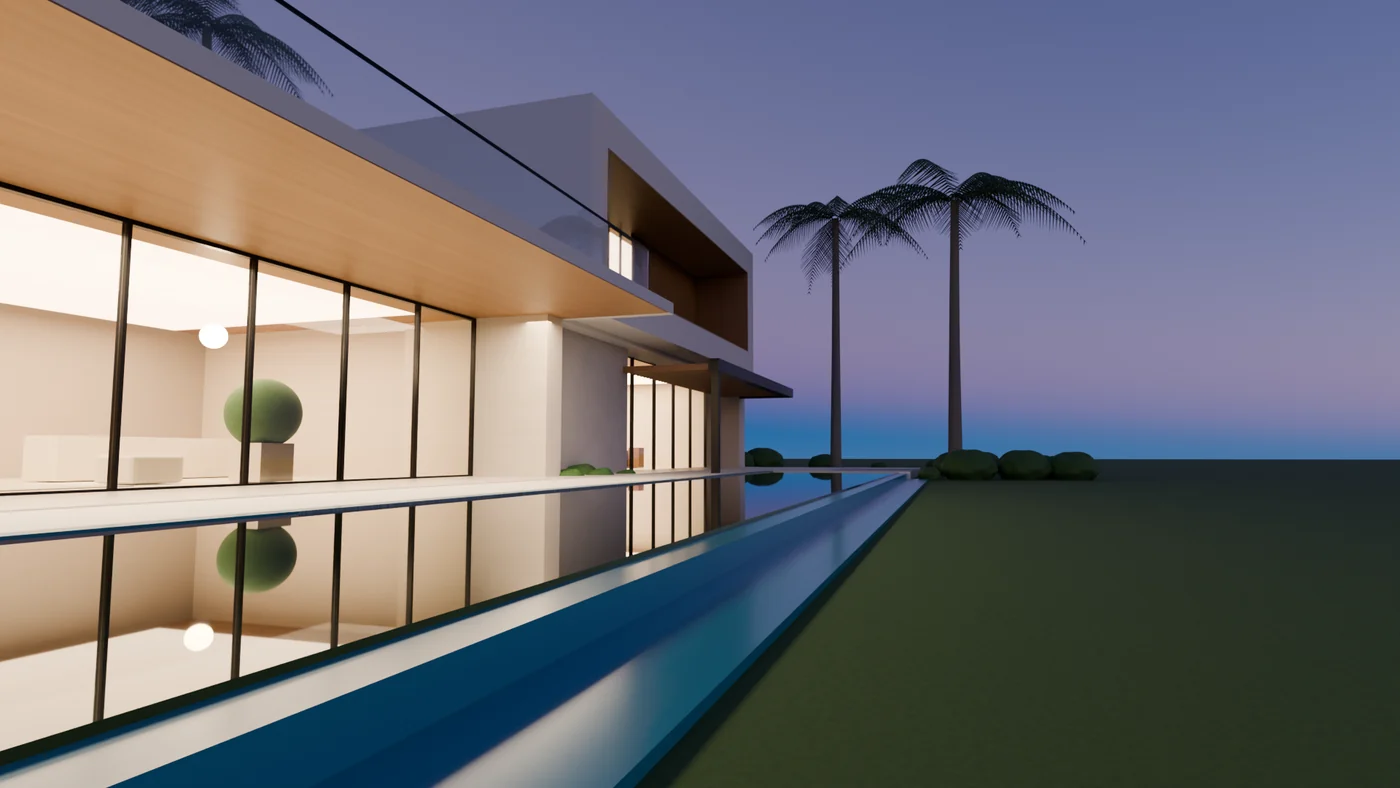
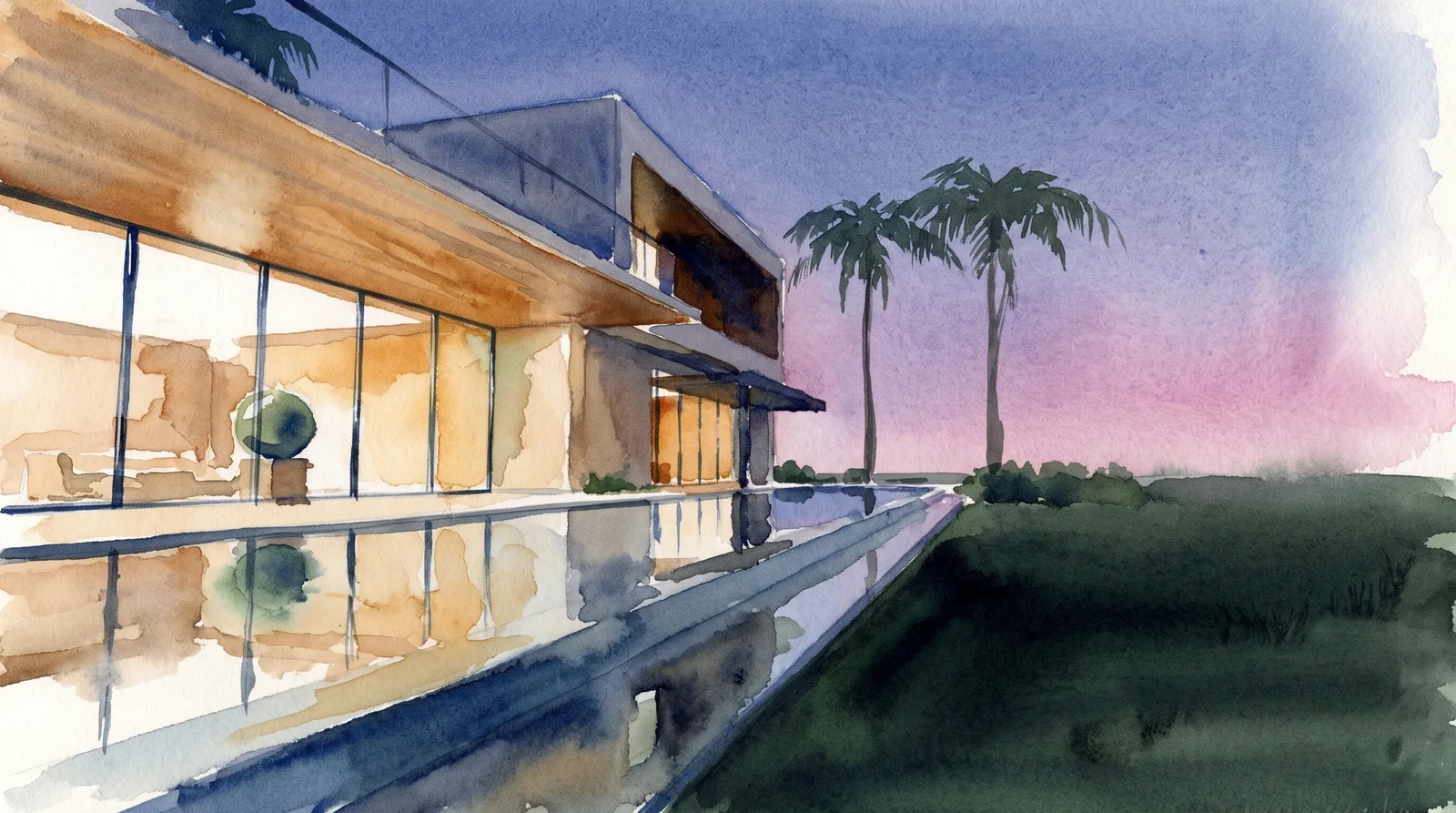
Watercolor before and after
The examples use AI-generated photos and Skiaform 3D renders, and all the people shown are fictional. Each caption names the style and any options used.
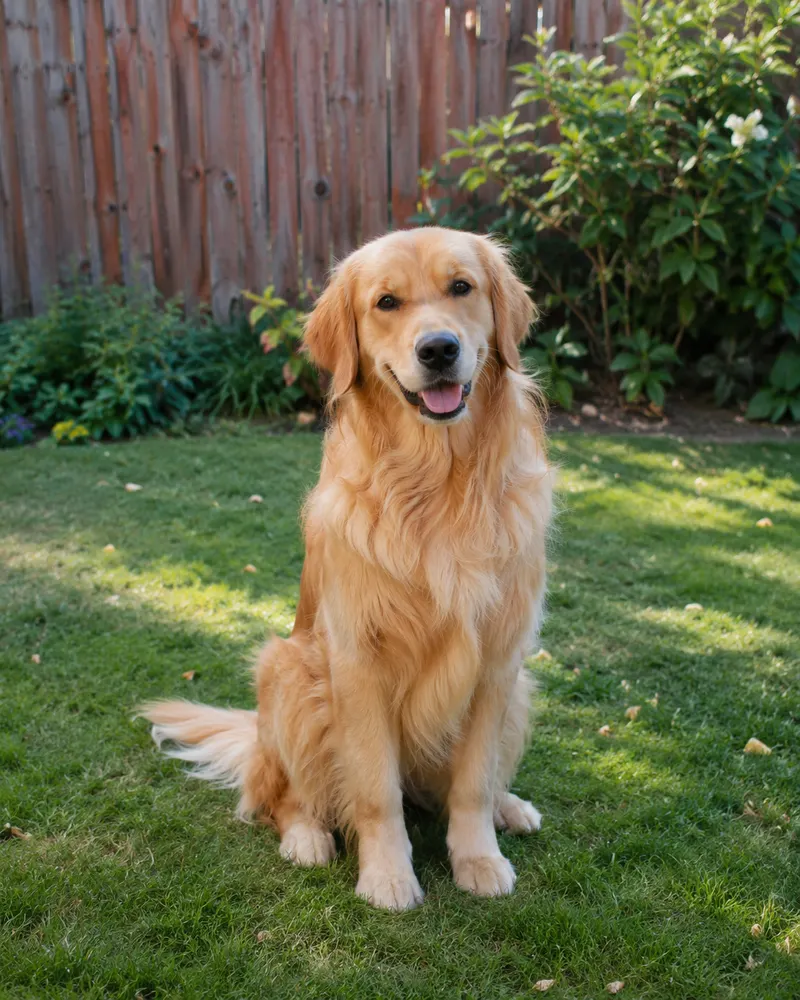 Before
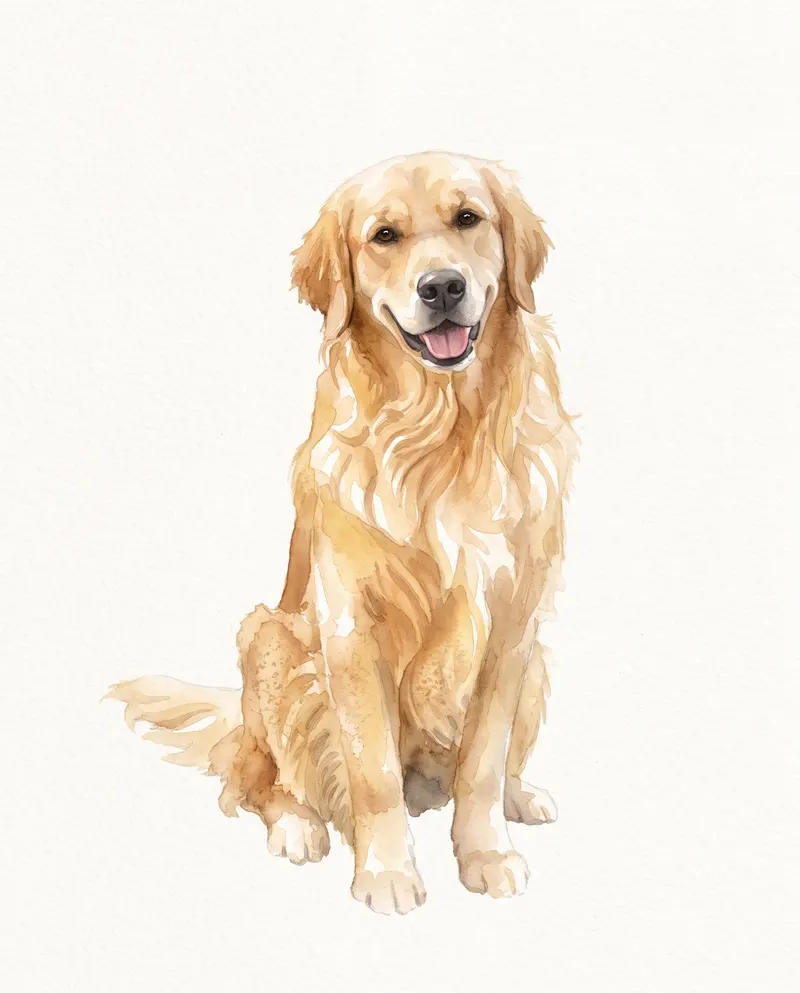 After
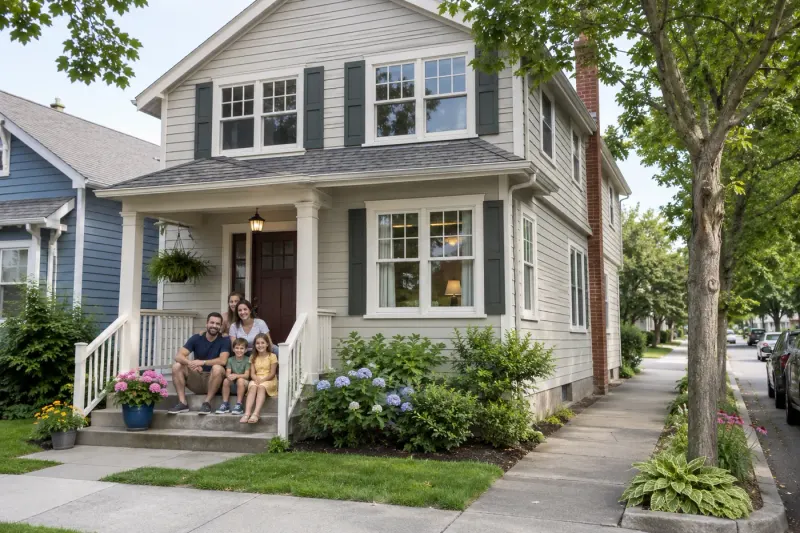 Before
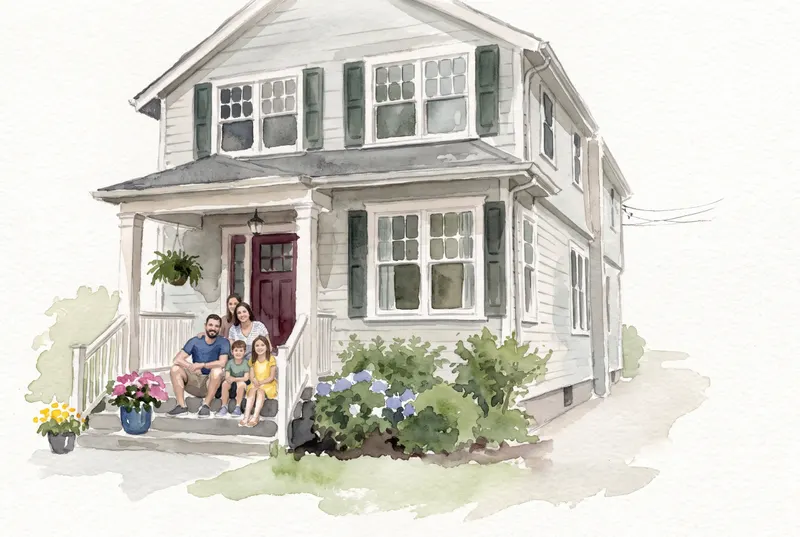 After
 Before
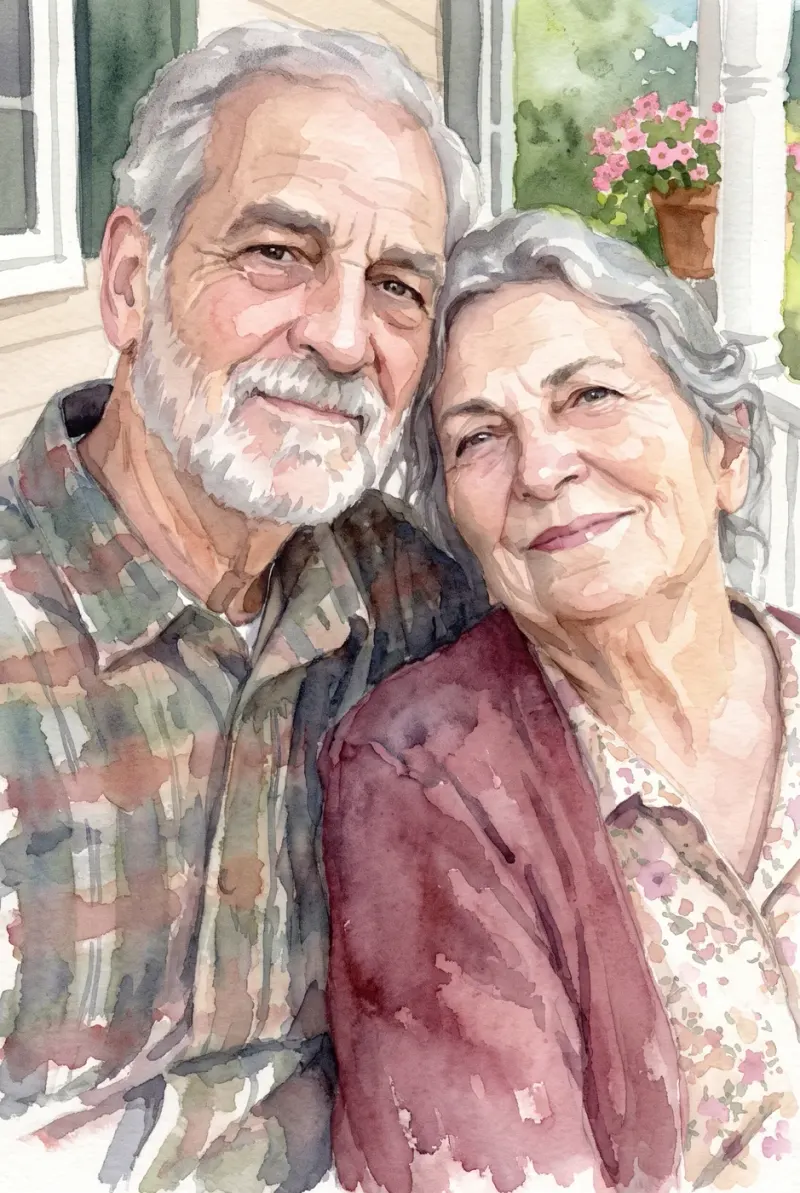 After
Show more examples
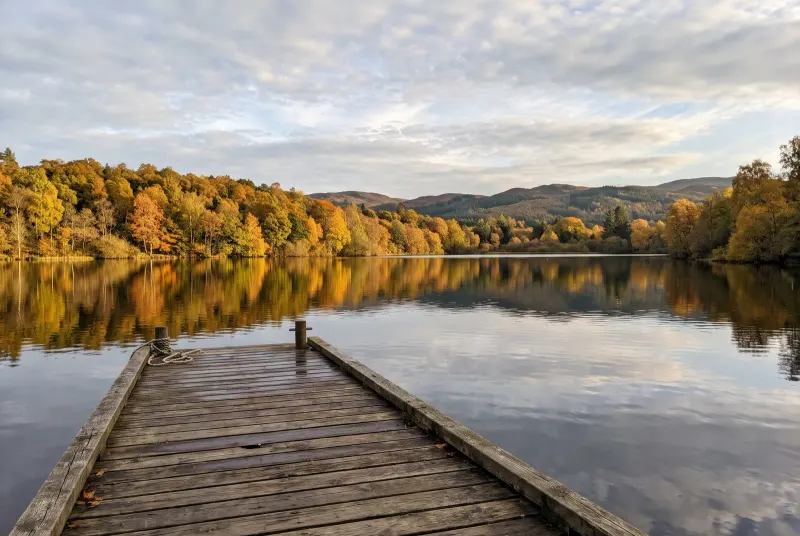 Before
 After
 Before
 After
 Before
 After
 Before
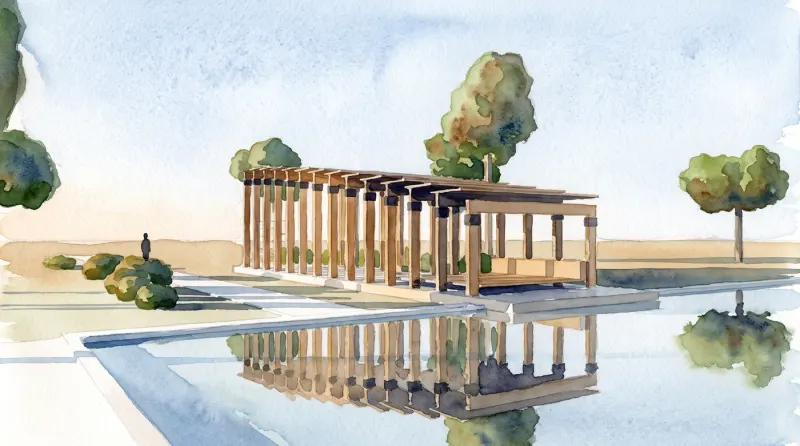 After
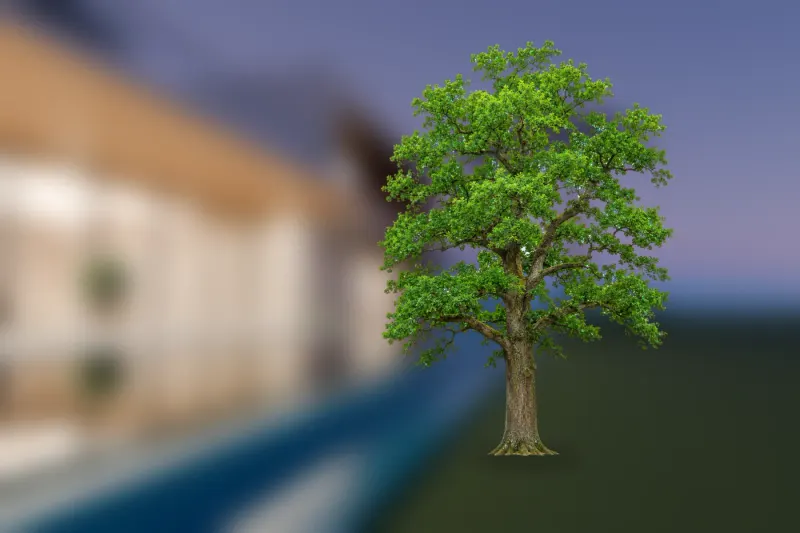 Before
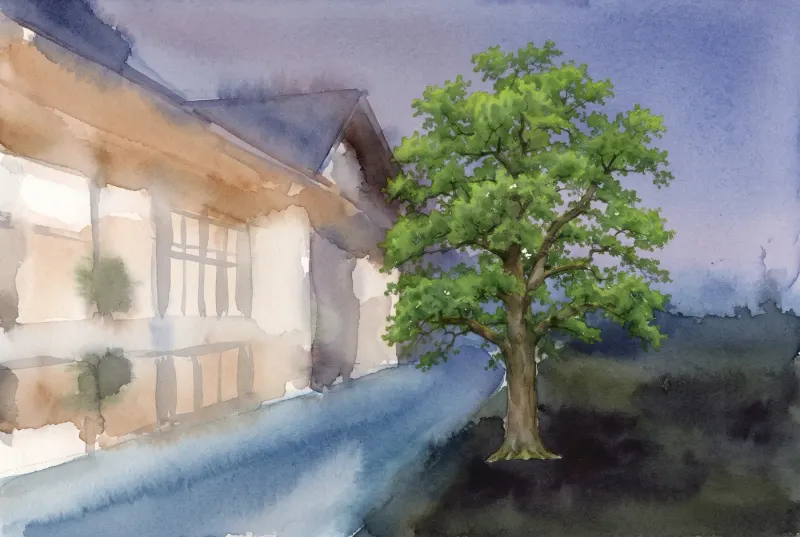 After
How to turn a photo into a watercolor
- Choose a photo
Open Skiaform Watercolor and choose the photo you want to paint.
- Pick a watercolor style
Choose Painterly for crisp accents, Loose for broad washes or Soft for gentle color transitions.
- Set the look and background
Under Look, choose Classic or Focus. Use Background & cleanup to set the background and pick what to leave out.
- Paint and download
Choose 2K or 4K. Sign in with Google to paint, then download. Fade edges and Make a card are free afterward.
Choose a watercolor preset
Painterly
Connected washes and crisp accents suit buildings, houses and gardens where you want to keep a few strong edges.
Soft
Gentle transitions suit portraits, especially when skin tones and facial details matter.
Loose
Broad washes and soft edges suit trees, skies and landscapes where you want the large shapes to lead.
Focus, backgrounds and cleanup
Focus, background settings and cleanup are all part of the same render at no extra cost.
These three paintings use the same house photo. Compare the background in Classic and Focus, then see how Fade edges blends the border into paper.
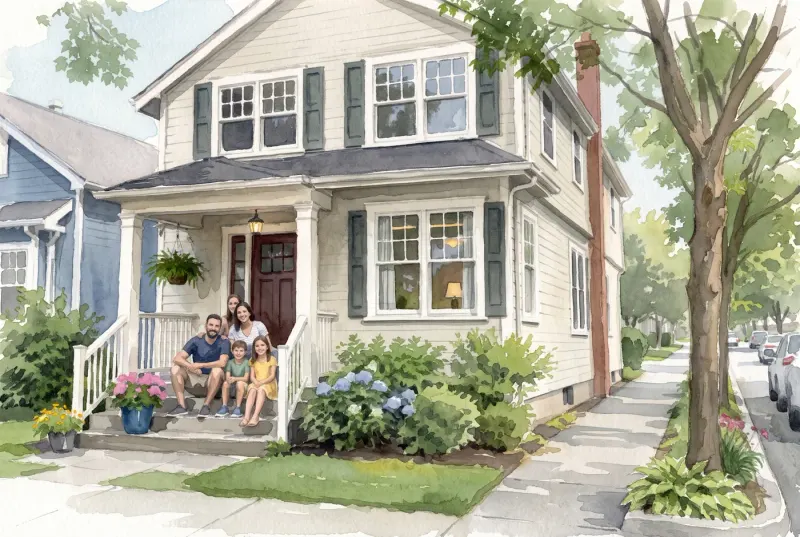
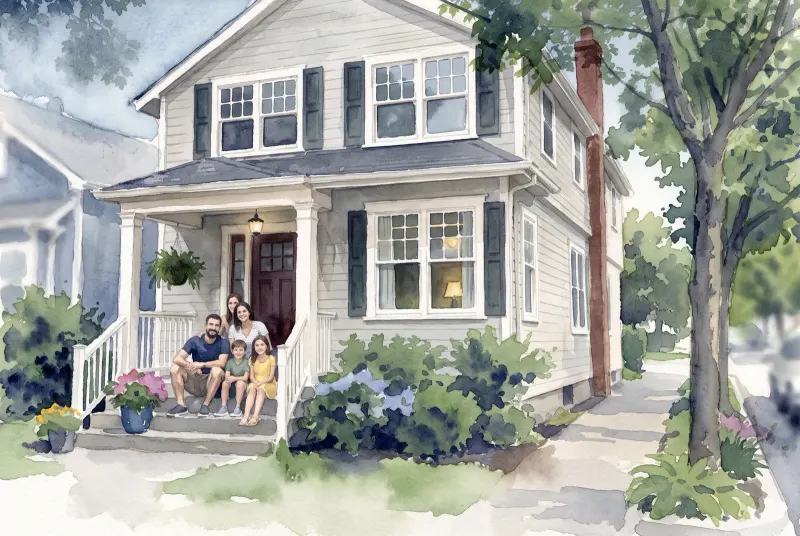
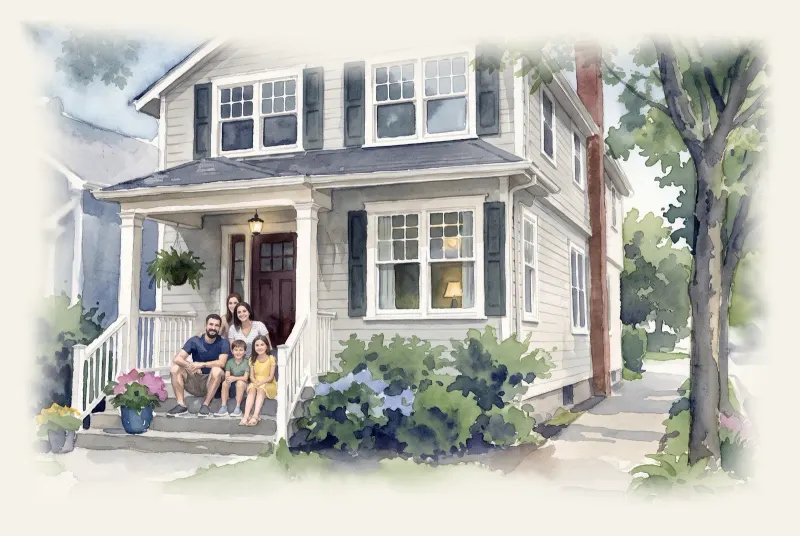
Focus
Tap what should stay sharp, such as a face or a pet. A depth model on your device softens the background before painting, and only the softened photo is uploaded.
Leave out
Tick parked cars, bins, power lines or background people, and the painter leaves them out.
Background
Keep scene paints the setting, Soft wash lightens it, and Plain paper paints only the subject and fades it to white paper.
Free finishes
Both are free in your browser after painting. Fade edges dissolves the border into paper. Make a card creates a 5 x 7 card with your greeting and a Letter sheet with two cards.
Watercolor prices
A 2K watercolor costs 1 credit. A 4K print file costs 2 credits, about $0.63 with Studio, $0.75 with Maker or $1.20 with Basic. If a painting fails, your credits are returned automatically.
Membership
$5 / month
10 credits a month. Unused credits roll over and stay in your balance after your membership ends.
Watercolor portraits and pet portraits from a photo
For a watercolor portrait from a photo, start with Soft, whose gentle transitions suit faces. Choose Focus and tap the face, or your pet, so the background softens around it. Plain paper gives the classic vignette, with the subject fading into white paper. The girl and dog example at the top of the page uses Soft on Plain paper.
Take the photo at eye level in soft light and fill the frame with the person or pet. For a watercolor pet portrait, check that the eyes are sharp in the original. The AI can change small features, so compare the eyes, mouth and expression with the photo before you print.
Landscape watercolor from a photo
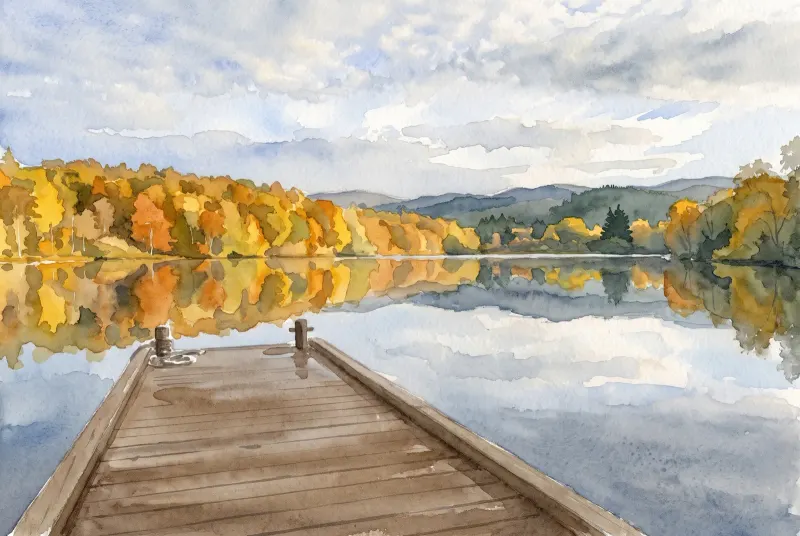
Start with a landscape photo that has a clear subject and broad areas of color. The lake and dock example uses Loose, which gives the water room for broad washes and keeps the dock recognizable.
Check the photo at thumbnail size before uploading. If the dock is hard to pick out, crop closer while leaving some open water around it.
Is there a free photo to watercolor app?
Yes. Some phone editing apps and online watercolor filters lay a free texture effect over a photo, which is fine for a quick look.
Skiaform is paid per image. It sends the photo to Google Gemini, which repaints the picture with an image model, and you can choose a 2K file for sharing or a 4K print file for a larger print. Once you have a painting, Fade edges and Make a card are free in your browser. If a conversion fails, the credits come back automatically.
Print sizes
You can print at home or take the file to a print shop. Screen (2K) is about 2,400 pixels on the long side, which gives about 8 inches at 300 pixels per inch (ppi) or 16 inches at 150 ppi. Print (4K) is about 16 megapixels and prints at about 15 x 11.5 inches at 300 ppi.
To find the size in inches, divide each pixel dimension by the ppi you plan to print at. Aim for 300 ppi for a print someone will hold; 150 ppi can be enough for a wall piece seen from a distance. Print a small proof on your paper first. The 2K gallery outputs, before resizing for the web, work out like this:
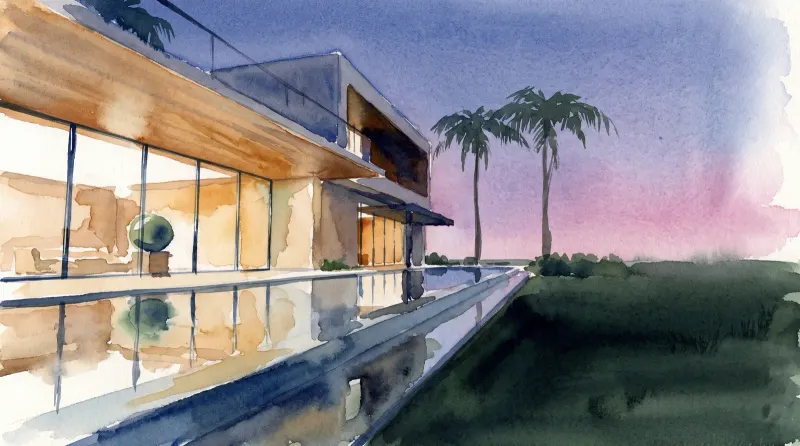
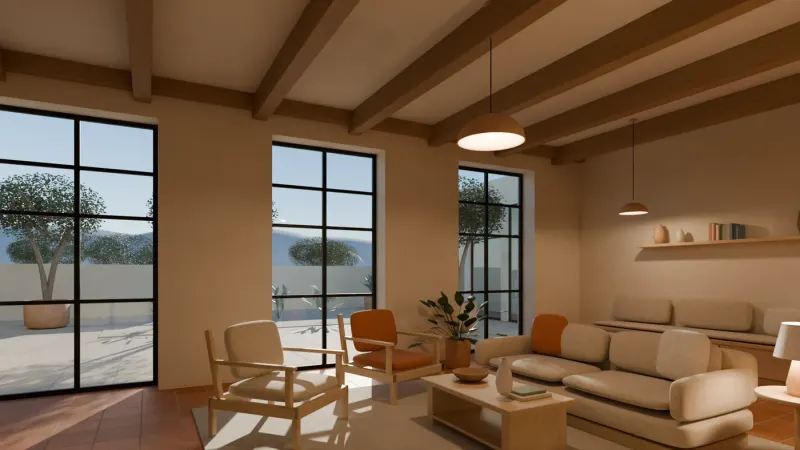
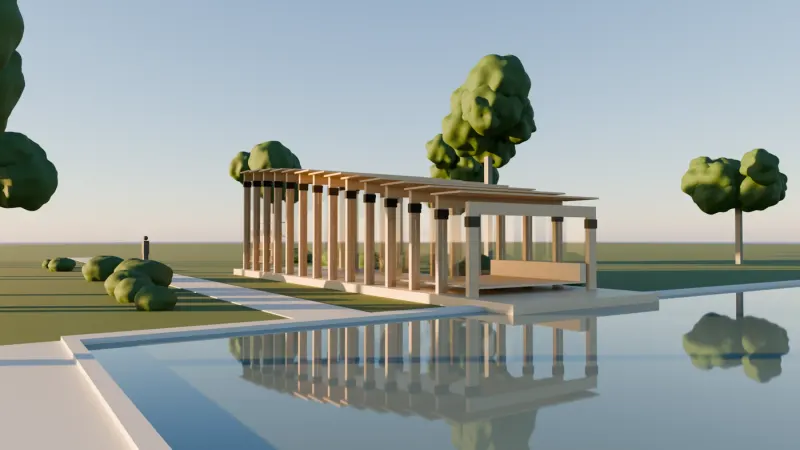
- The 2752 by 1536 pixel house, guesthouse and pavilion examples print at about 18.3 by 10.2 inches at 150 ppi or 9.2 by 5.1 inches at 300 ppi.
- The 2528 by 1696 pixel street and tree examples print at about 16.9 by 11.3 inches at 150 ppi or 8.4 by 5.7 inches at 300 ppi.
- The 1696 by 2528 pixel couple example prints at about 11.3 by 16.9 inches at 150 ppi or 5.7 by 8.4 inches at 300 ppi.
Holiday cards and greeting cards
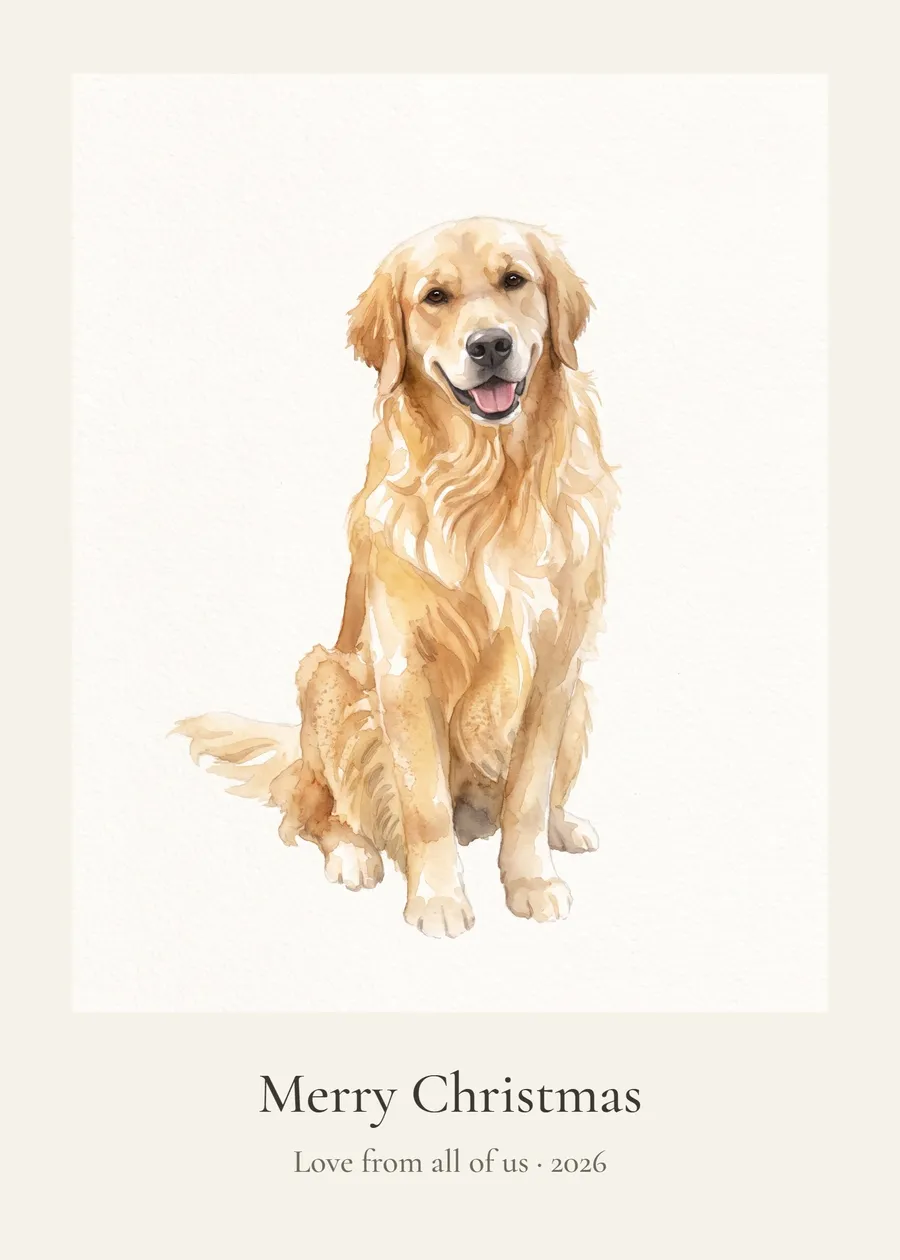
Once the watercolor is ready, Make a card lays it out as a 5x7 holiday or greeting card with your own text, typeface and card color. It also gives you a US Letter sheet with two cards on it, for printing at home. It uses no credits. You can try it with sample paintings in the free watercolor Christmas card maker.
Leave some space around the subject when you pick the photo. Plain paper adds white space around the subject, which leaves room for the greeting.
Other paintings from the same photo
For a painting of a home, see how to pick the photo and clean up the street for a house portrait. The same photo also works in Oil, Gouache and Ink & wash; see photo to painting.
How to get a watercolor you can use
Start with a clear photo
Look at the photo at thumbnail size. You should still be able to pick out the main subject and see where it ends and the background begins. Side light can separate a wall from the roof above it. Open shade can give you enough contrast to read a face without losing the eyes in shadow. A plain backdrop makes it easier to keep attention on the subject.
Start from your full-resolution file. Crop out distractions near the edges and leave room around the subject if you plan to frame it. Review any features you want to keep, such as a house number or eyeglasses. They may need to be added back by hand if they get simplified.
Match the preset to the subject
For a house or streetscape, try Painterly when the roofline, steps or window rhythm help you recognise the place. Try Loose for a garden or a tree where the silhouette and the gaps in the branches matter more than individual leaves. Soft works for a softly lit portrait. Compare a portrait with the source photo before printing.
Make a watercolor house portrait as a gift
Choose an angle the recipient will recognise, such as the view from the front gate. Step back far enough to keep the roof and entrance in frame. A tree, painted door or porch helps place the house, so give these features room in the crop. If you want to include a street name or date, set it below the picture after conversion, or add it with Make a card, to keep the lettering sharp. The house portrait page has examples with the parked cars left out.
Prepare a watercolor architecture rendering
Use a watercolor rendering to show how a building sits in its setting. A shaded model view with a readable silhouette gives the washes a clear structure. The AI can soften edges, shift proportions or change a window count, so compare the image with the model before you put it on a board. Check openings, stair landings and the roof profile, and keep measured linework in a separate drawing.
Place the watercolor beside a plan or section on your architecture presentation board. If you want to control the placement of trees and people yourself, start with a tree PNG or cut-out people and see how to layer them in an architecture collage.
Paint the watercolor effect in Photoshop
You can make your own watercolor effect with a paper texture, a few masked color washes and selected outlines from the original photo. Keep the edge layer separate so you can soften foliage while keeping a roof edge or window frame legible. A watercolor filter can give you a starting point. Working by hand takes longer and lets you control exactly which edges and details stay.
What happens to your photos
Google Gemini repaints your uploaded photo. Uploaded photos expire after 24 hours, and results expire 7 days after creation. A scheduled cleanup deletes expired images. Your images aren't used to train AI models. See Watercolor privacy.
FAQ
Is it free to turn a photo into a watercolor?
A Skiaform watercolor costs 1 credit at 2K or 2 credits at 4K. After you make a paid painting, Fade edges and Make a card are free in your browser.
How much does a 4K print file cost?
A 4K print file uses 2 credits: about $0.63 with Studio ($25 for 80 credits), $0.75 with Maker ($15 for 40) or $1.20 with Basic ($9 for 15). Credits don't expire.
How long does a conversion take?
A conversion usually takes 30 to 60 seconds. You can download the painting when it's ready.
Can I remove cars, bins or power lines from the painting?
Yes. Tick them under Leave out and the painter leaves them out in the same render, at no extra cost. Leave out also covers people in the background.
Can I print the watercolor or use it commercially?
You can print the downloaded watercolor. For commercial use, check the Watercolor terms and make sure you have the rights to the source photo.
Will faces stay recognisable?
You can usually recognise the person, though the AI can change small features and exact likeness varies. Use a clear photo, choose Soft, and compare the face with the original before printing.
What file types can I upload?
You can upload JPEG, PNG, WebP or HEIC files up to 40 MB. Large photos are resized in your browser before upload, which also removes location data. HEIC opens in Safari; in other browsers, export the photo as JPEG first.
What happens to my photos?
Uploaded photos expire after 24 hours, and results expire 7 days after creation. A scheduled cleanup deletes expired images. Your images aren't used to train AI models.
What happens if a conversion fails?
Skiaform automatically returns the credits to your balance.
Make your watercolor
Choose a photo to get started. Pick 4K if you want a print file.
Convert a photoKeep up with Skiaform
Get occasional emails about drawing tools and templates.